
How to Make Your Own NFC Business Card in 5 Steps

What do you need to make your own NFC business card?
Making your own NFC business card is a real weekend project, and it works. An NFC business card is a card with a small chip inside and no battery. When a phone that reads NFC comes close, the phone powers the chip and reads what’s stored on it, usually a link. You need three things:
- A blank NFC card with a writable chip. The most common chips are NXP’s NTAG213, NTAG215 and NTAG216, which follow the NFC Forum Type 2 Tag standard (NXP).
- A phone that can write NFC and a writer app. Android phones with NFC can write tags with a free app such as NFC Tools. On iPhone, apps can write NFC tags since iOS 13 (Apple Developer), and NFC Tools’ maker says writing from its iOS app works from iPhone XS / XR on iOS 17 or later (wakdev).
- A link to your details that you control: a contact page, a profile page or a hosted contact file.
The rest of this guide explains which chip to buy, what to write on it so it opens on both iPhone and Android, the five steps, and the limits worth knowing before you hand your DIY card to a client.
Short answer
To make your own NFC business card, buy a blank NTAG215 or NTAG216 card, put your contact details on a web page you control, and use an app such as NFC Tools to write that page’s link to the chip as a URL record. Test it on an iPhone and an Android phone, then decide whether to lock it.
Disclosure: this guide is published by PIXEL, which makes NFC smart business cards in Riyadh. The DIY steps below work with any blank NFC card, not only ours. Chip and phone facts are linked and dated in the Sources section.
Which NFC chip should you buy: NTAG213, NTAG215 or NTAG216?
All three chips work with NFC phones. The difference is how much they can store.
| Chip | User memory | Roughly how much text | Good for |
|---|---|---|---|
| NTAG213 | 144 bytes | ~130 characters | One short link |
| NTAG215 | 504 bytes | ~480 characters | A link, or a very simple contact card |
| NTAG216 | 888 bytes | ~850 characters | A link, or a fuller contact card |
Memory: NXP product page (NTAG 213/215/216). Character estimates: wakdev chip guides. Checked 19 November 2026.
For a business card that stores a link, any of the three is enough. If you want room to experiment, an NTAG215 or NTAG216 card gives you more space. Wakdev, the maker of NFC Tools, notes that an NTAG213 is too small for a complete business card in contact-file (vCard) format and recommends a short link instead.
Should you write a link or a contact file on the chip?
Write a link. This is the most important decision in a DIY NFC business card, and the reason is the iPhone.
Apple’s developer documentation says iPhones read tags in the background (with no app open) from iPhone XS and later, and that the system looks for a URI record: a web link (http/https) or a few other link types such as tel, mailto and sms. Apple’s page doesn’t describe background support for contact (vCard) records. In practice, that means a chip holding only a vCard may not open on an iPhone without an app, while a web link opens on both iPhone and Android.
So the usual approach is:
- Put your details on a page at a link you control (a simple contact page, a profile page, or a downloadable contact file).
- Write that link to the chip as a URL record.
A bonus: if your details change, you update the page, not the chip.
How to make your own NFC business card in 5 steps
- Prepare your details at a link. Create a page with your name, title, company, mobile, email and website, plus a “save contact” file if you can. Use a link you will keep for years, ideally on your own domain.
- Install a writer app. On Android, install NFC Tools from Google Play and switch NFC on in Settings. On iPhone, install NFC Tools from the App Store (check your model and iOS version first).
- Write the link as a URL record. In NFC Tools, open Write, add a record, choose URL / URI, paste your link, then tap Write and hold the card against the phone’s NFC area until it confirms. Keep one record only, so phones open the right thing.
- Test on several phones. Tap the card on at least one iPhone and one Android phone, unlocked, with the camera and wallet closed. If a tap fails, see our guide on why an NFC business card isn’t working on iPhone or Android.
- Decide whether to lock the chip. Until you lock it, the chip can be rewritten with a writer app. Locking makes it read-only, and NFC Tools’ maker warns that locking is irreversible (wakdev). Lock only once the link is final, which is another reason to use a link you control rather than a temporary one.
How should you set up the details for Saudi Arabia?
A few practical choices make a DIY card work better for people you meet in Saudi Arabia. These are our recommendations, not rules:
- Write your mobile number in international format (+966 followed by the number without the leading 0), so it dials correctly from a foreign phone too.
- Add your name in Arabic and English. The vCard 4.0 standard uses UTF-8 (IETF RFC 6350), which supports Arabic script, so a contact file can carry both. Test it on an iPhone and an Android phone to check how the name appears.
- Make the page bilingual if you meet both Arabic and English speakers, and keep it light so it loads quickly on mobile data.
- Add a WhatsApp link if that’s how clients reach you, alongside your mobile number.
For what to include on the card itself, see what to put on a business card in Saudi Arabia.
What are the limits of a DIY NFC business card?
A DIY card shares a link well. Before you rely on it for work, know what it doesn’t do:
- The link is fixed. Everyone who taps gets the same link, and it can be copied and forwarded. If that link is your public page, that’s fine; if it carries personal details, think about who can reach it. We explain this in the static link flaw.
- It depends on the page behind it. If the page, the domain or the service hosting it stops, the card stops too, and a locked chip can’t be pointed elsewhere.
- An unlocked chip can be rewritten. That’s why writer apps offer a lock option; once locked, it can’t be changed, even by you.
- The design is up to you. Blank cards are usually plain white; printing your design on them is a separate job.
- It only gives your details away. A link doesn’t capture the other person’s details, doesn’t log who you met, and doesn’t send anything to a CRM.
- No central control for a team. Each card is managed one by one, so there’s no way to update or switch off a departing employee’s card from one place.
DIY or ready-made smart business card: which is right for you?
| DIY NFC card | Ready-made smart business card (e.g. PIXEL) | |
|---|---|---|
| Setup | You buy a blank card, build a page and write the chip | Order, design online, card arrives ready |
| Opens on iPhone and Android | Yes, if you write a URL record | Yes |
| Change your details later | Yes, by editing your page | Yes, by editing your profile |
| Card design | Plain, unless you print it yourself | Printed with your design |
| Link security | Fixed link, can be forwarded | Depends on the brand (PIXEL: one-time link per tap) |
| Lead capture and CRM | No | With some services (PIXEL: with Connect) |
| Team management | Card by card | Central dashboard (varies by brand) |
| Best for | Hobbyists, one person, testing the idea | Professionals and teams who use it with clients |
Table: PIXEL facts from pixel-nfc.com, checked 19 November 2026; other brands differ.
In our experience, DIY is a great way to test whether tapping fits how you network. If you meet clients every week, or you’re equipping a team, a ready-made card saves the setup and adds the parts a chip alone can’t do.
Where the PIXEL smart business card fits
A PIXEL smart business card is the ready-made version of everything above, built in Riyadh:
- Instant Save, free for life: tap your card on the back of any iPhone or Android phone and your name, number and email go straight to their contacts. No app on either side, no subscription.
- Your details live on your profile, not the chip, so you update them any time and the next tap shares the new version. No reprinting, no rewriting.
- Dual-Layer Security: every tap creates a one-time link that expires after use, so your details can’t be forwarded or reopened. A lost card can be deactivated from your dashboard.
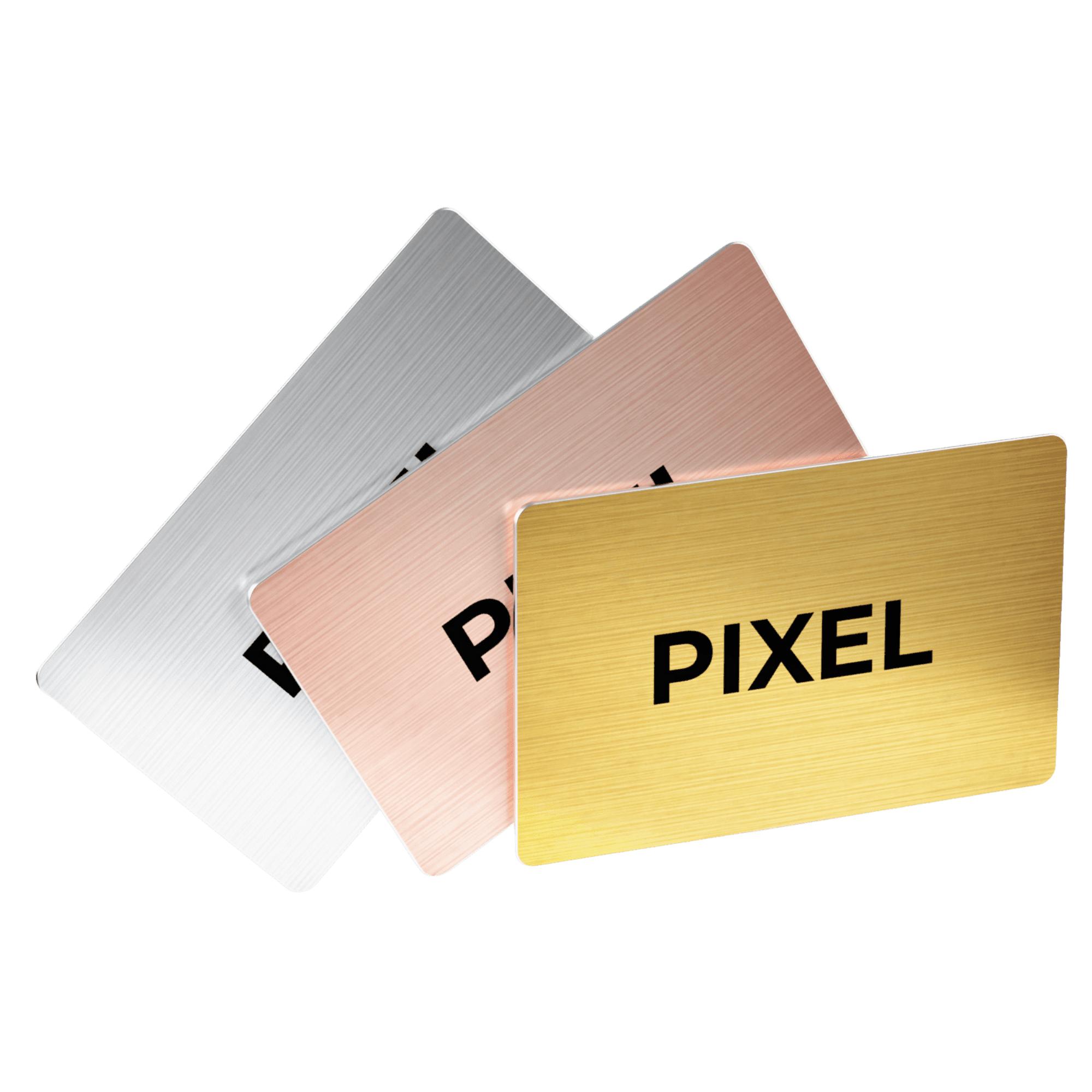
- Printed with your design in full colour on durable plastic (PIXEL Original) or in solid metal (PIXEL Metal Edition).
- PIXEL Connect, for the people who collect leads (optional subscription): your card opens a Digital Profile, the other person can share their details back, and leads can go to HubSpot, Salesforce or Dynamics 365. People who only share their own details don’t need it.
PIXEL Original costs SAR 125 per card and PIXEL Metal Edition SAR 235 per card, as a one-time purchase (pixel-nfc.com shop, checked 19 November 2026). Connect starts at SAR 25 for 3 months. New to the category? Start with what a smart business card is or see the best smart business cards in 2026.
FAQ
Can I make my own NFC business card?
Yes. Buy a blank NFC card (NTAG213, 215 or 216), put your details on a page at a link you control, and write that link to the chip with an NFC writer app such as NFC Tools.
Which NFC chip is best for a business card?
For a link, any NTAG21x chip works. NTAG215 (504 bytes) or NTAG216 (888 bytes) gives more room if you want to store more than a short link (NXP).
Can an iPhone write an NFC business card?
Yes. Apple lets apps write NFC tags since iOS 13, and NFC Tools’ maker says its iOS app writes chips from iPhone XS / XR on iOS 17 or later. Android phones with NFC can write tags too.
Should I put a vCard or a link on the NFC chip?
A link. iPhones read NFC tags in the background when they hold a URI record such as a web link (Apple Developer), so a link opens on both iPhone and Android. Put your contact file on the page the link opens.
Can I change my NFC business card after writing it?
Yes, as long as the chip isn’t locked: rewrite it with the app. Better still, keep the same link and update the page behind it. Locking is irreversible.
Is a DIY NFC business card secure?
It shares a fixed link, so anyone who taps can copy and forward it. Don’t put anything on that page you wouldn’t share publicly. Some ready-made cards, such as PIXEL, use a one-time link per tap instead.
Does the person I tap need an app?
No, not for a link. Their phone opens the link in the browser. They need NFC switched on (Android) or a supported iPhone, and an internet connection to load the page.
Can I put my company logo on a DIY NFC card?
Only if you print it. Most blank NFC cards are plain; printing a design on them is a separate service. Ready-made smart business cards are printed with your design.
The verdict
Making your own NFC business card is easy and cheap: a blank NTAG215 or NTAG216 card, a page at a link you control, and five minutes with a writer app. Write a link, not a contact file, test on iPhone and Android, and lock only when the link is final. If you’ll use the card with clients every week, or for a whole team, a ready-made smart business card gives you the printed design, the security and the lead capture a chip alone can’t.
Want a card that’s ready to tap? Order your PIXEL card → pixel-nfc.com/en/shop Equipping a team? Get a team quote → pixel-nfc.com/en/shop?tab=teams
Sources
All checked on 19 November 2026; they may have changed since. Wakdev and Wave Connect are vendors; their pages are used for practical app details only.
- NXP Semiconductors, “NTAG 213/215/216: NFC Forum Type 2 Tag compliant IC with 144/504/888 bytes user memory”, product page (page revised 23 Dec 2025). https://www.nxp.com/products/NTAG213_215_216
- Apple Developer Documentation, “Adding Support for Background Tag Reading” (“iPhone XS and later support background tag reading”; the system reads an NDEF URI record; supported schemes include http/https, tel, mailto, sms; reads only when the iPhone is in use). https://developer.apple.com/documentation/corenfc/adding-support-for-background-tag-reading
- Apple Developer Documentation, “writeNDEF(_:completionHandler:)” (available from iOS 13.0). https://developer.apple.com/documentation/corenfc/nfcndeftag/writendef(_:completionhandler:)
- wakdev (maker of NFC Tools), chip guides for NXP NTAG213, NTAG215 and NTAG216 (user memory, approximate characters, vCard too limited on NTAG213, iPhone XS / XR on iOS 17+ for reading and writing via NFC Tools). https://www.wakdev.com/en/knowledge-base/nfc-chips/nxp-ntag213.html · https://www.wakdev.com/en/knowledge-base/nfc-chips/nxp-ntag215.html · https://www.wakdev.com/en/knowledge-base/nfc-chips/nxp-ntag216.html
- wakdev, “How to lock an NFC chip” (“This action is irreversible”). https://wakdev.com/en/knowledge-base/how-to-guides/how-to-lock-an-nfc-chip.html
- wakdev, NFC Tools app page (write a link, contact information, email, phone number; “An NFC compatible device is required”). https://wakdev.com/en/apps/nfc-tools.html
- IETF RFC 6350, “vCard Format Specification” (August 2011; vCard 4.0 uses UTF-8). https://www.rfc-editor.org/rfc/rfc6350
- PIXEL product facts and prices: pixel-nfc.com/en/shop, /en/features and /en/faq, checked 19 November 2026. https://www.pixel-nfc.com/en/shop
Table of contents
- What do you need to make your own NFC business card?
- Short answer
- Which NFC chip should you buy: NTAG213, NTAG215 or NTAG216?
- Should you write a link or a contact file on the chip?
- How to make your own NFC business card in 5 steps
- How should you set up the details for Saudi Arabia?
- What are the limits of a DIY NFC business card?
- DIY or ready-made smart business card: which is right for you?
- Where the PIXEL smart business card fits
- FAQ
- Can I make my own NFC business card?
- Which NFC chip is best for a business card?
- Can an iPhone write an NFC business card?
- Should I put a vCard or a link on the NFC chip?
- Can I change my NFC business card after writing it?
- Is a DIY NFC business card secure?
- Does the person I tap need an app?
- Can I put my company logo on a DIY NFC card?
- The verdict
- Sources
One Smart Business Card replaces thousands of paper cards.
Better for your wallet, better for the planet.


One-time purchase · Upgrade to PIXEL Connect anytime


